

4 min read
Bulk crafting Steam badges with a browser extension
How bulk badge crafting works, the extensions that do it, and the risks of installing a third party tool on your Steam session.
What bulk crafting does
Steam's own Badges page crafts one badge at a time. When a large order lands, that is a lot of clicking: open the page, find a game with a full set, craft, scroll, repeat.
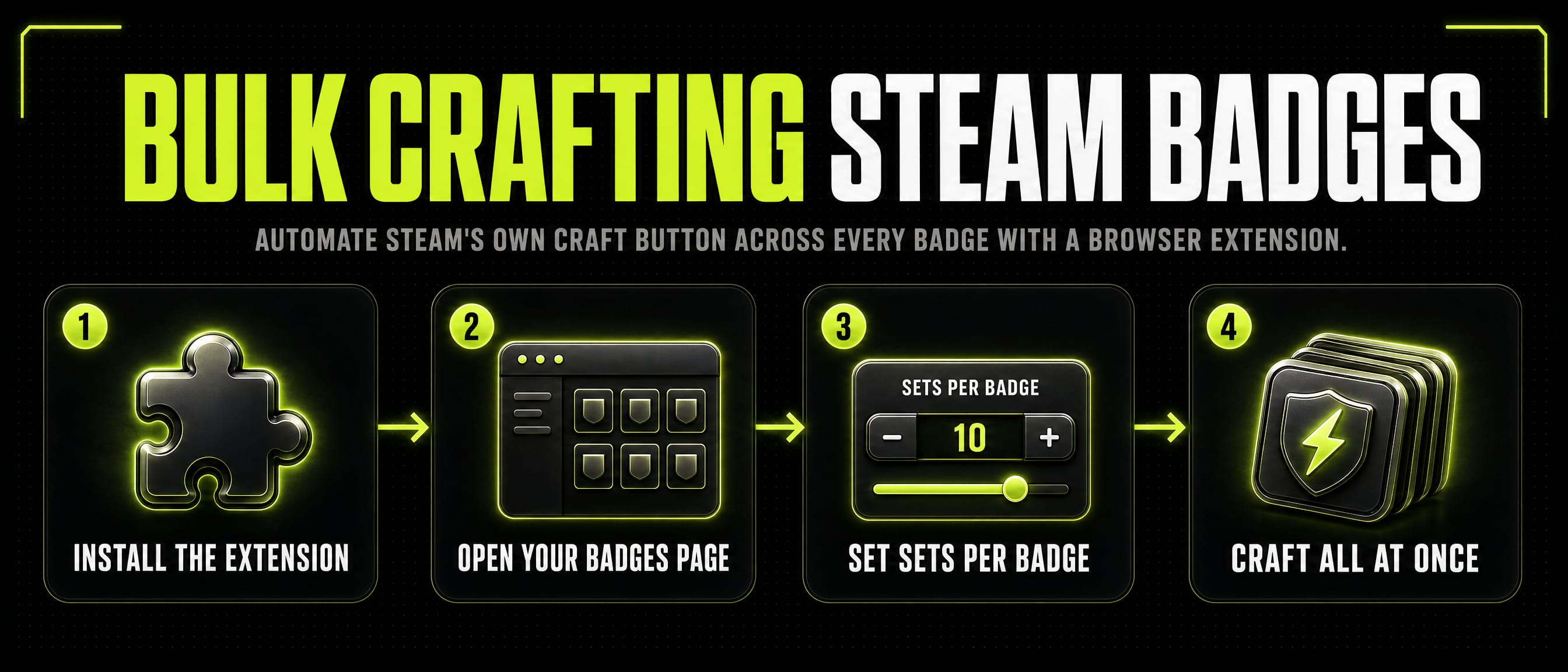
A bulk crafting extension automates that. It adds a control to the Badges page that runs Steam's own craft action across every game where you hold a complete set, or lets you set how many sets to spend per game.
It gives you nothing and bypasses nothing. You still need the full card sets sitting in your inventory, which is exactly what a Gameza order delivers. Crafting is final either way: a badge cannot be turned back into cards.
Steam Inventory Helper
The most widely used option. It is a browser extension for Chrome and Firefox with over a million users, mainly a trading and market tool, and it includes a one click badge crafting feature on the Badges page.
Be aware of its history: after an ownership change in 2017, users reported that it tracked browsing activity such as clicks and visited URLs. The current team disputes that the extension deceives users. It is still actively maintained and widely installed. Read its store listing and recent reviews and decide for yourself.
Only install it from the official Chrome Web Store or Firefox Add-ons, never from a link in a chat or a forum post.
Other options
TcNo Steam Card Assistant is open source, on GitHub, and available for Chrome and Firefox. It can craft one of each available badge in a click and works from the badge list page. Open source means the code can be inspected.
Sinlyxe Steam Badge Crafter is a Chrome extension built only for this. It scans every craftable badge and lets you choose zero, one, or the maximum per badge before crafting the batch.
These do the same job as Steam Inventory Helper's crafting feature with a smaller footprint.
How to bulk craft, step by step
Accept your Gameza trade offers first, so all the card sets are actually in your Steam inventory.
Decide your targets before you start. Crafting cannot be undone, so if you only want certain games leveled, know which ones. The How to craft Steam badges guide covers what a craft needs.
Install the extension from the official Chrome Web Store or Firefox Add-ons.
Open your Badges page at steamcommunity.com/my/badges. The extension adds a crafting control to it.
Choose how many sets to spend per badge, or craft one of each, and start it.
Leave the tab open while it runs. Steam limits how fast badges can be crafted, so a large batch can take a few minutes.
Check your new level once it finishes.
Use any extension at your own risk
These are third party tools. None of them are made by Valve or by Gameza.
A browser extension that can act on steamcommunity.com has access to your signed in Steam session while it is installed. Install only from the official Chrome Web Store or Firefox Add-ons, glance at the permissions it asks for and its recent reviews, and remove it once your badges are crafted. An open source option is easier to trust because the code can be checked.
Gameza does not endorse, control, or support any specific extension, and cannot help if one misbehaves. Bulk crafting only saves you clicks. It does not change what your account needs or what happens to it.
Sources
Ready to see a price?